Firmware update tutorial
Free Firmware Update Guide
*This update method serves as a demonstration. Please download the firmware according to your specific needs.
Hardware Support: Windows 10 or higher computers.
-
1. Access the Official Website
Open the official website: www.hanlinyue.com.cn and find .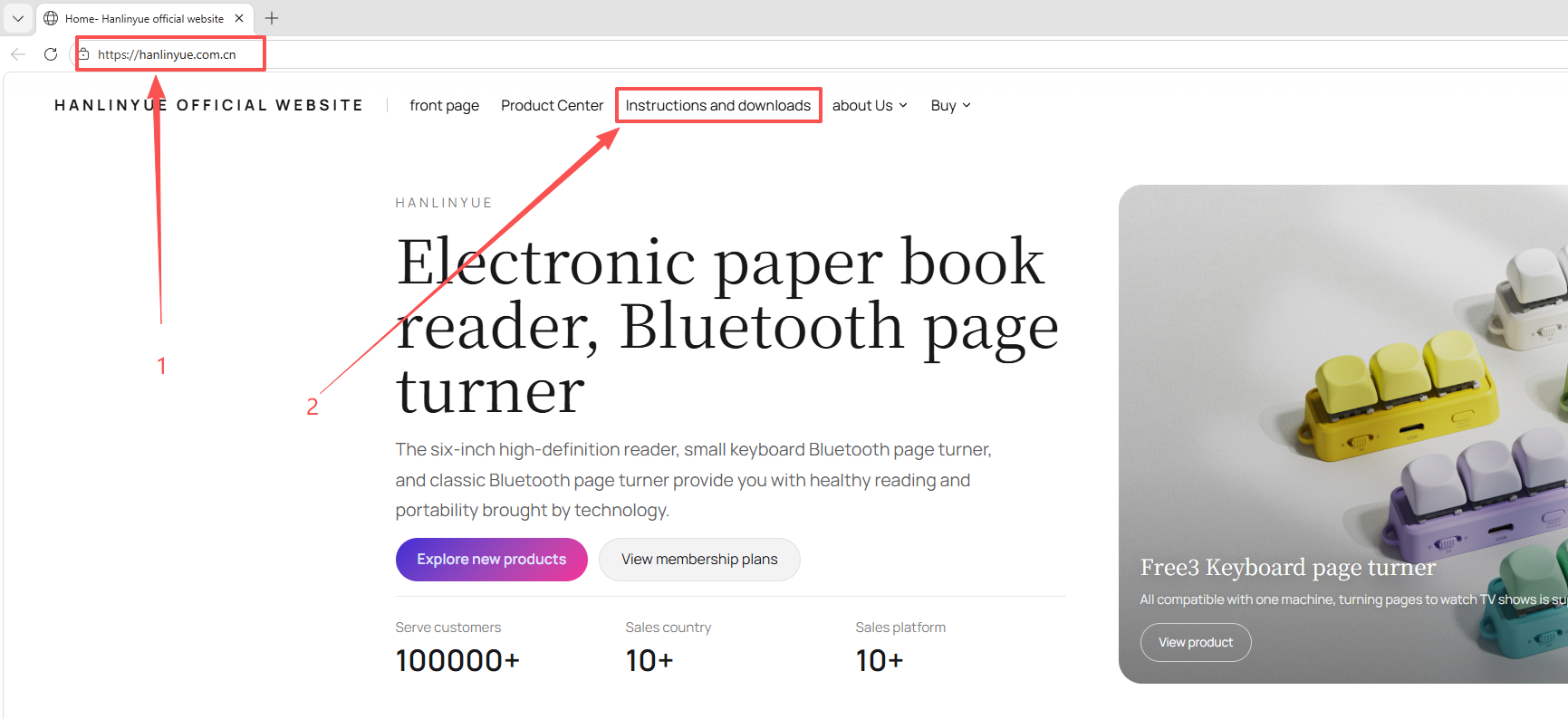
-
2. Select Your Device Category
Select the category based on your device model.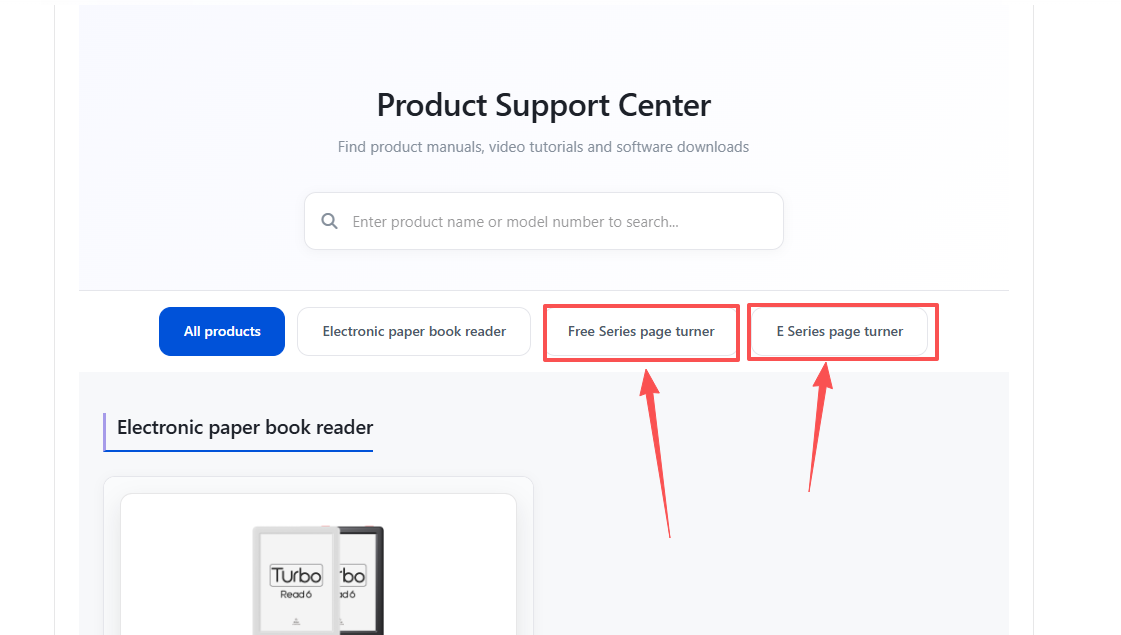
-
3. Download the Custom Software
Using the Free series as a demonstration, click to download: Custom Software Download (Universal upgrade software for the Free series).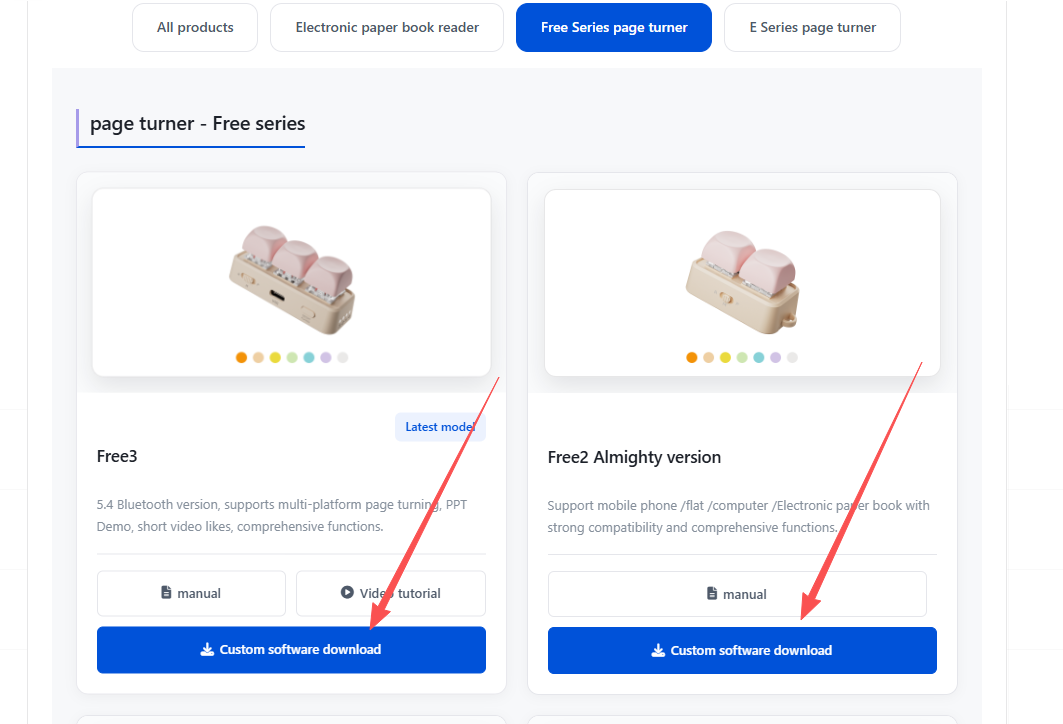
-
4. Choose the Operating System Version
After clicking download and install, it will redirect to a page to choose between Windows or Mac systems. Click to download the Windows version.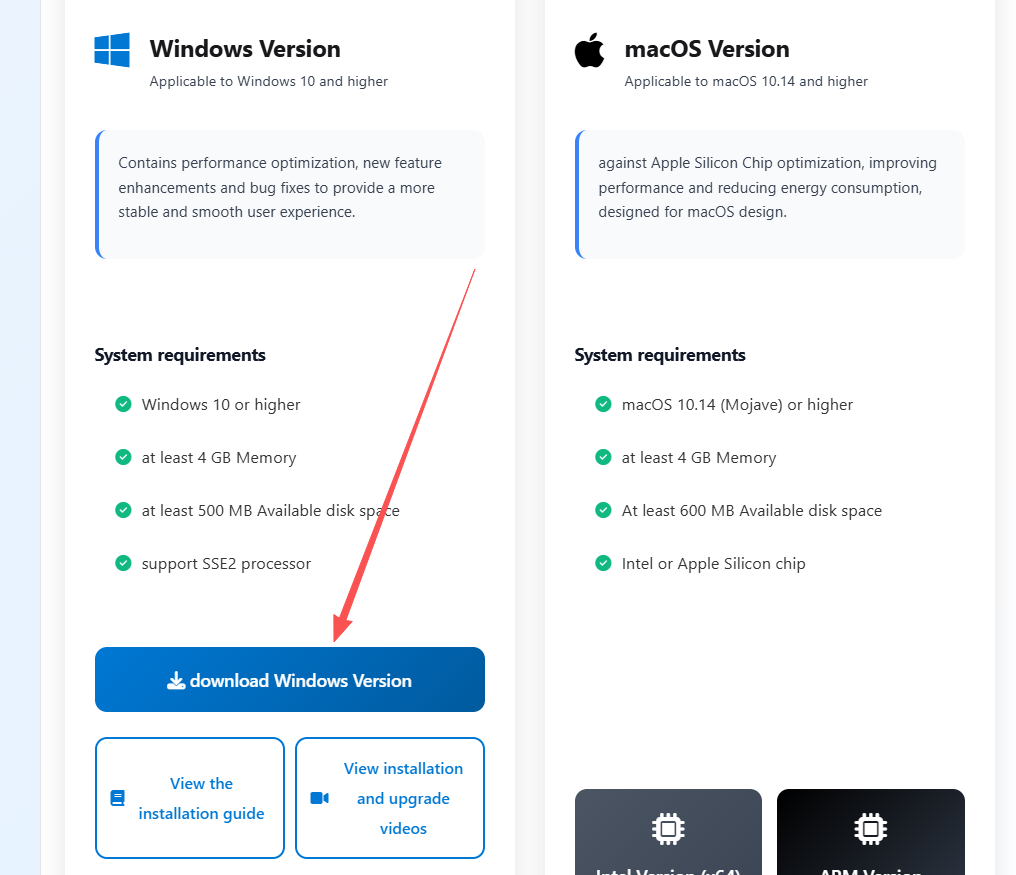 *Please Note: Firmware updates are only supported on Windows 10 or higher computers. Mac systems only support custom functions and do not support firmware updates.
 -
5. Bypass Windows Security Warning
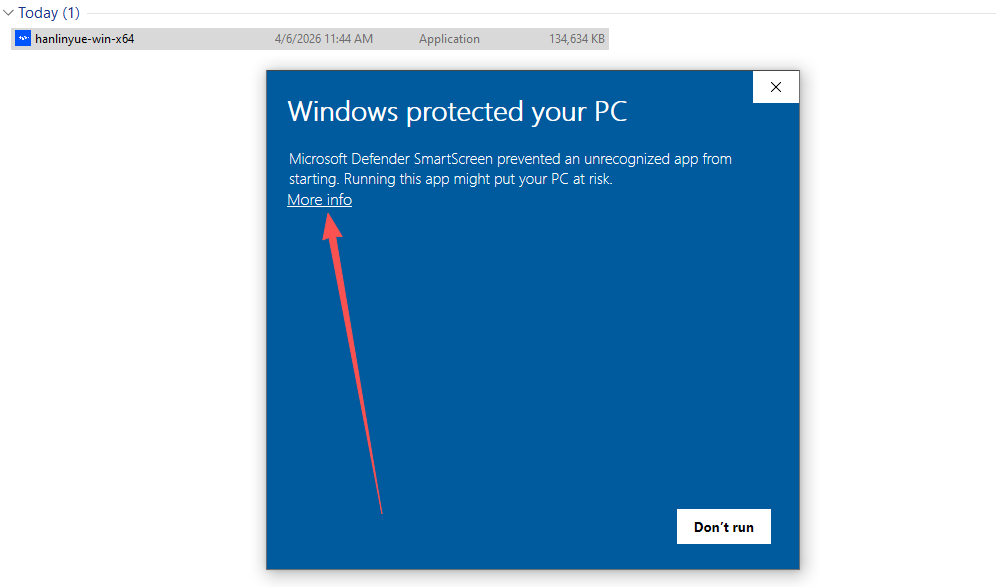
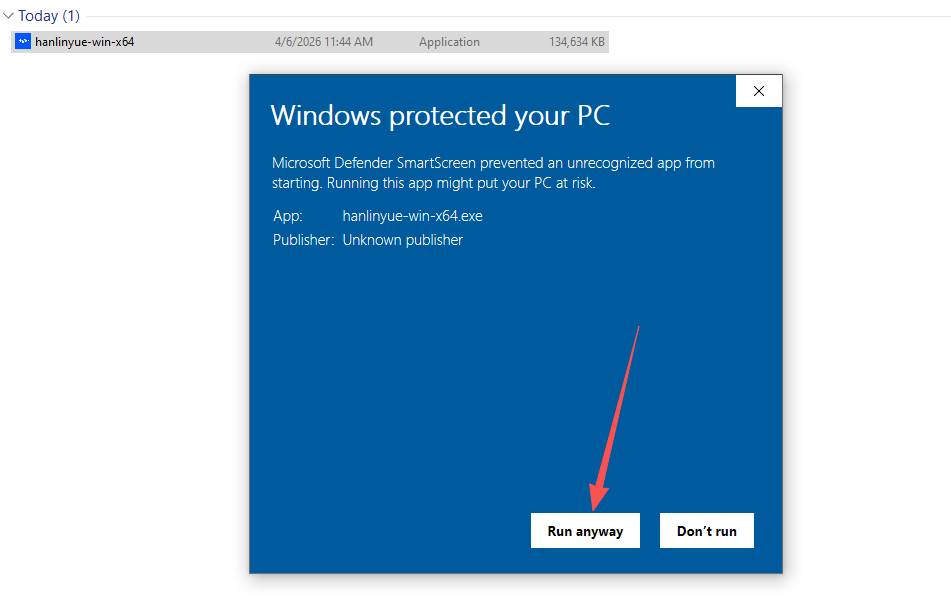
After downloading, the Windows system may show a security interception warning. Click the three dots on the right, select , and then select .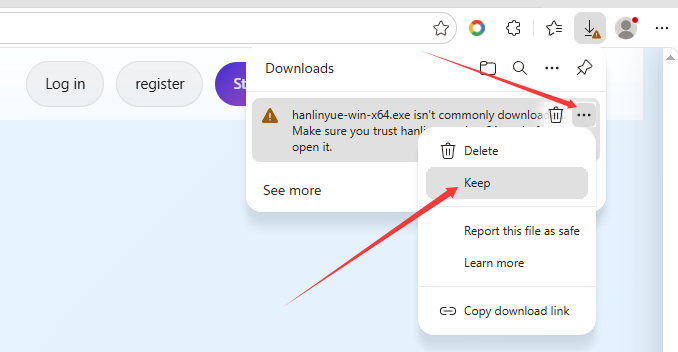
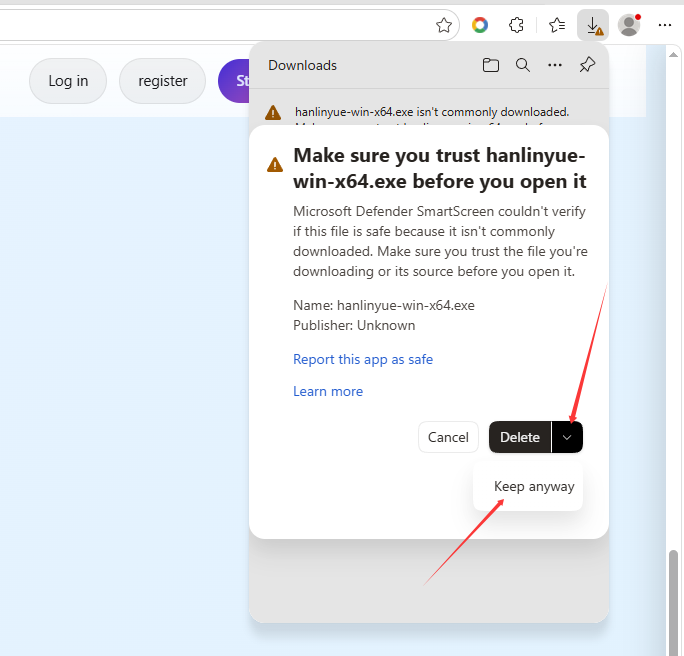
-
6. Install the Custom Software
Install the newly downloaded custom software.-
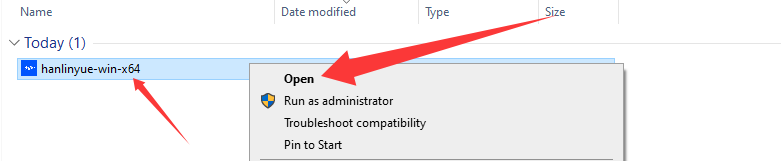
Right-click the mouse and select .
-
Select .
-
Select and wait for the device to install the update.
-
Right-click the mouse and select .
-
7. Software Interface & Download Firmware
After the software is installed, connect your device using a USB data cable, and the software homepage will be displayed.
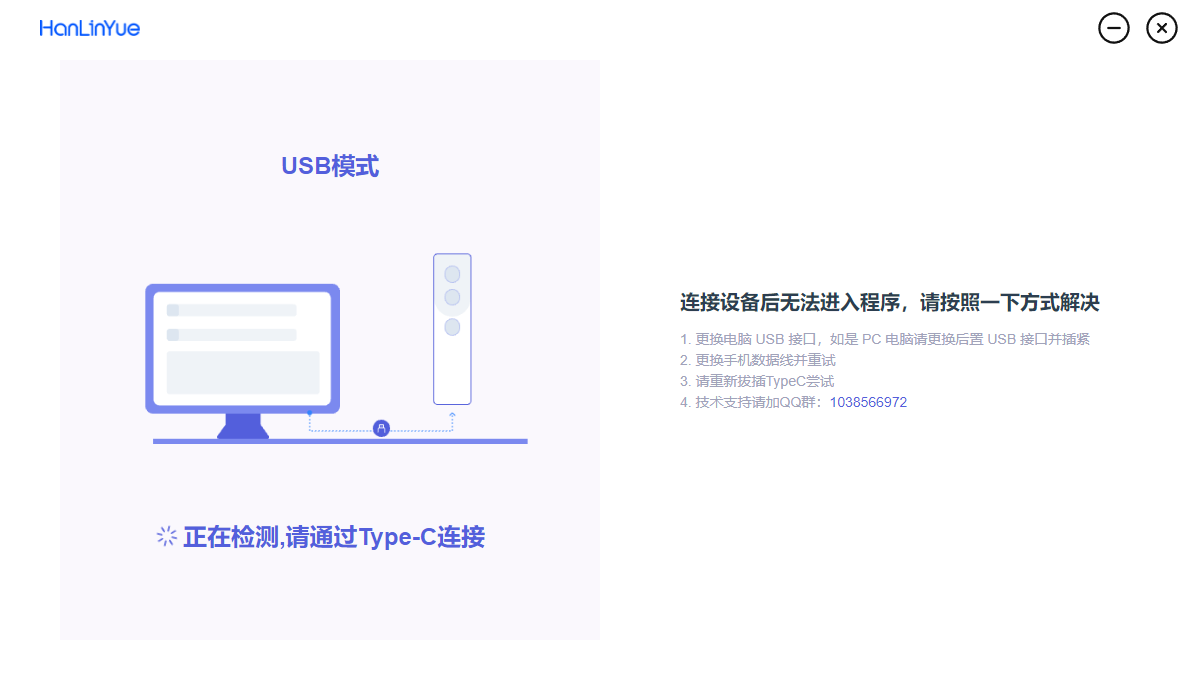
- 7.1 Displays the software homepage.
-
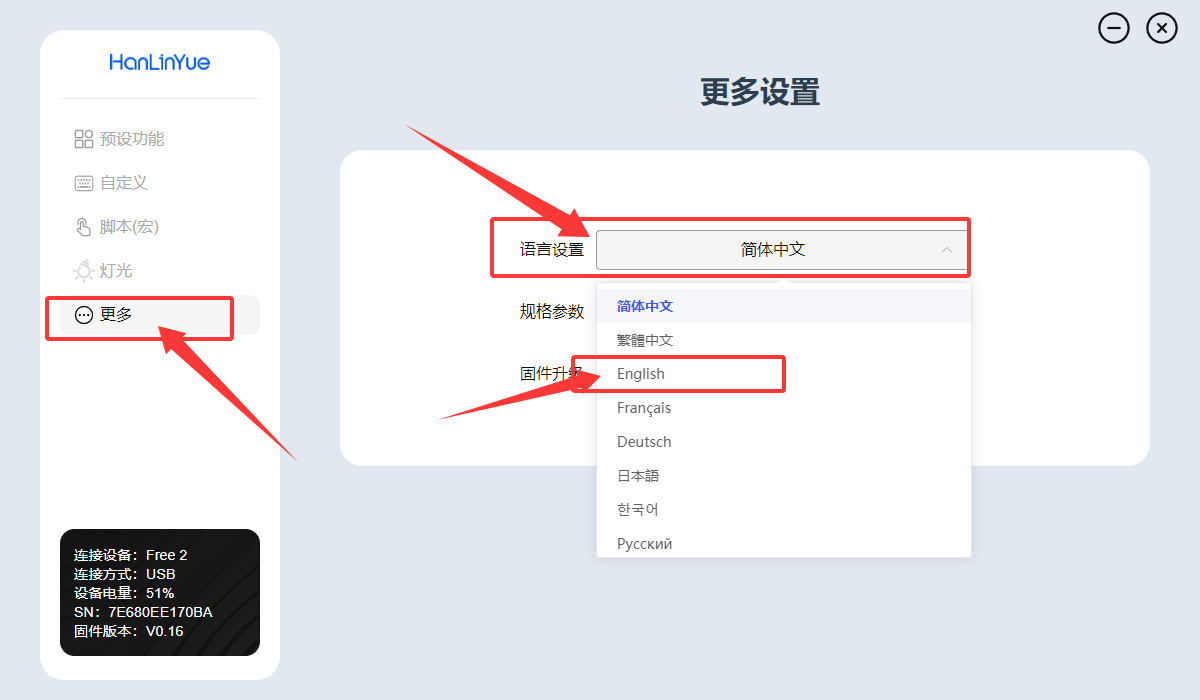
7.2 You can first switch the language to the English system.
-
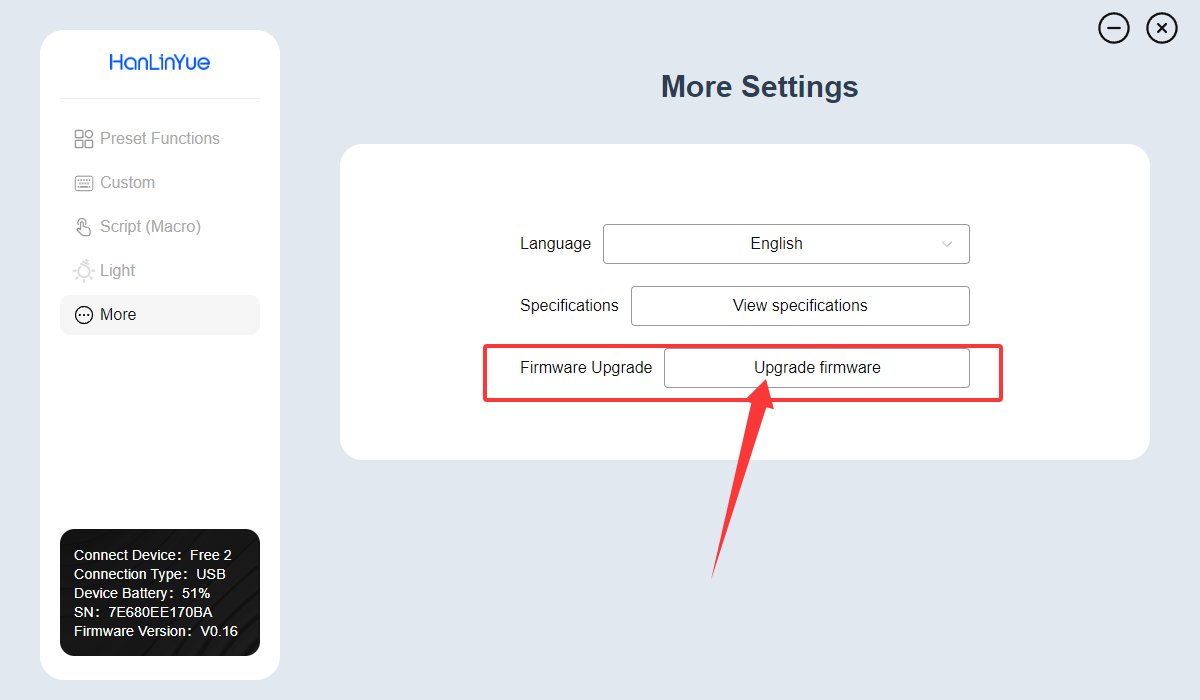
7.3 Select .
-
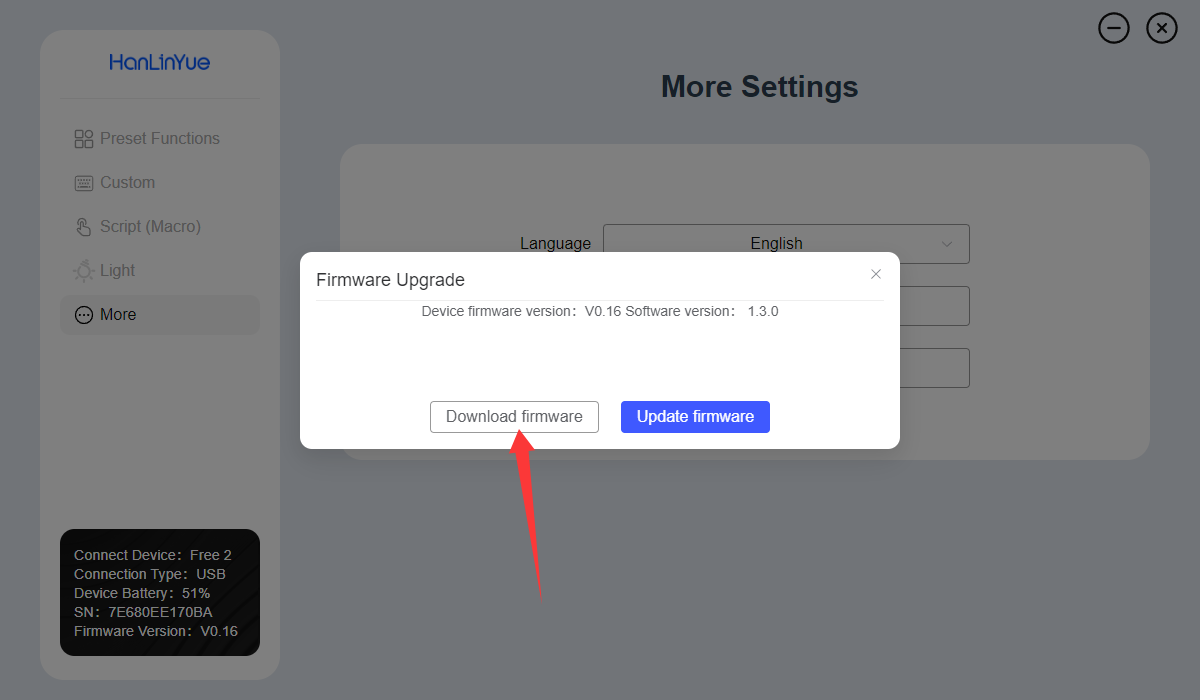
7.4 Select .
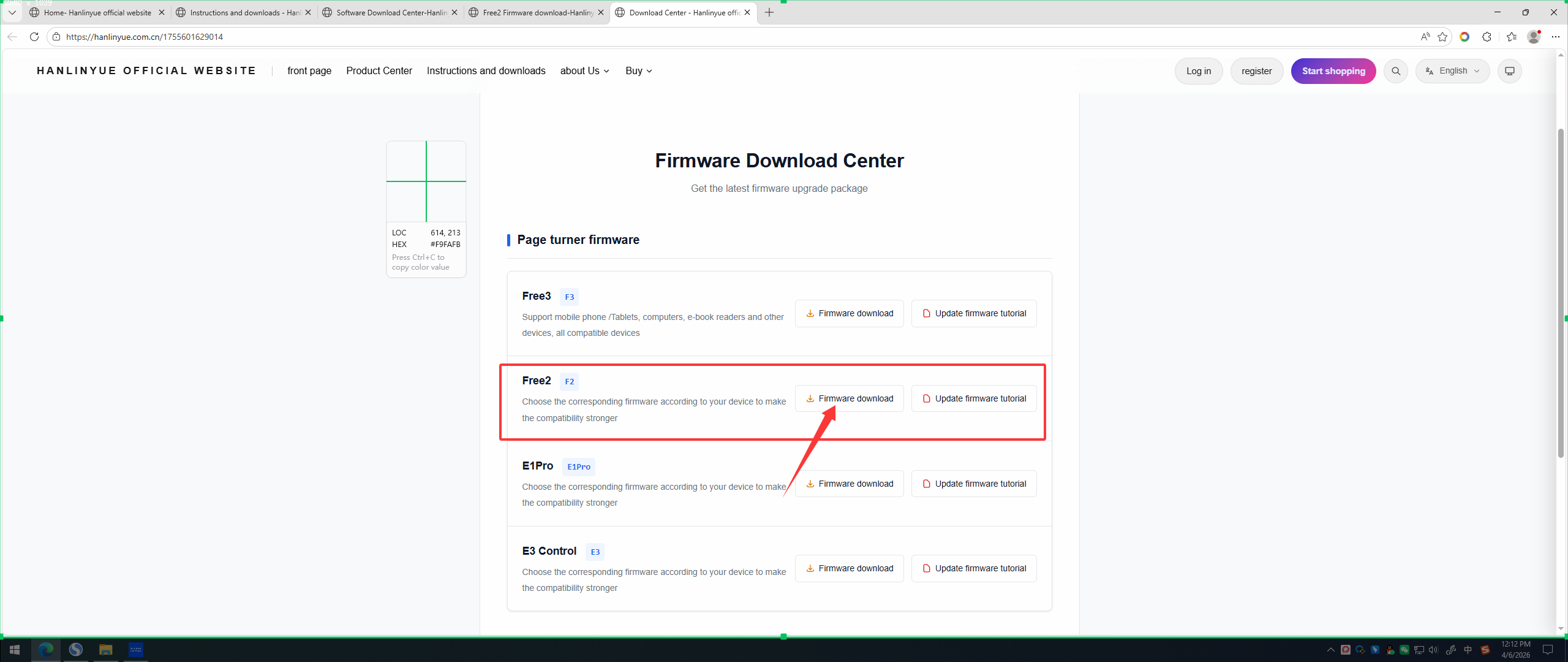
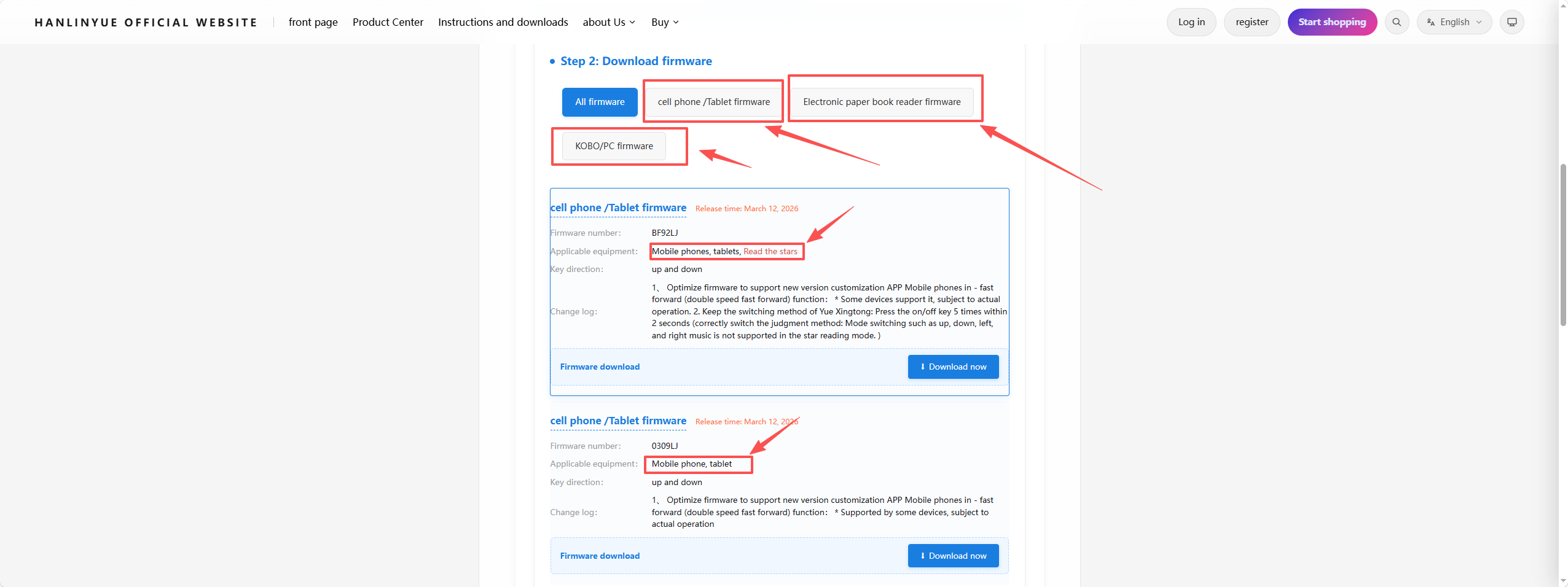
Select Product Firmware (Using Free2 as a demonstration):
Choose the appropriate firmware for your device. The top section shows the categories, and the bottom section shows the differences between supported devices. Then click .
-
8. Execute the Firmware Update
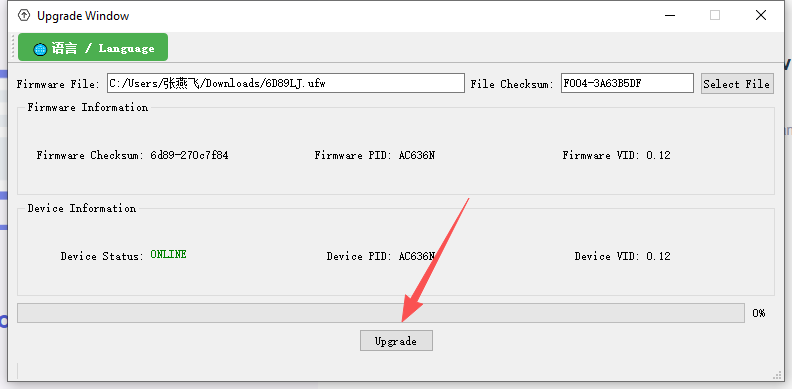
Return to the page from step 7.4, select , switch the language if needed, and select the file (the downloaded firmware).
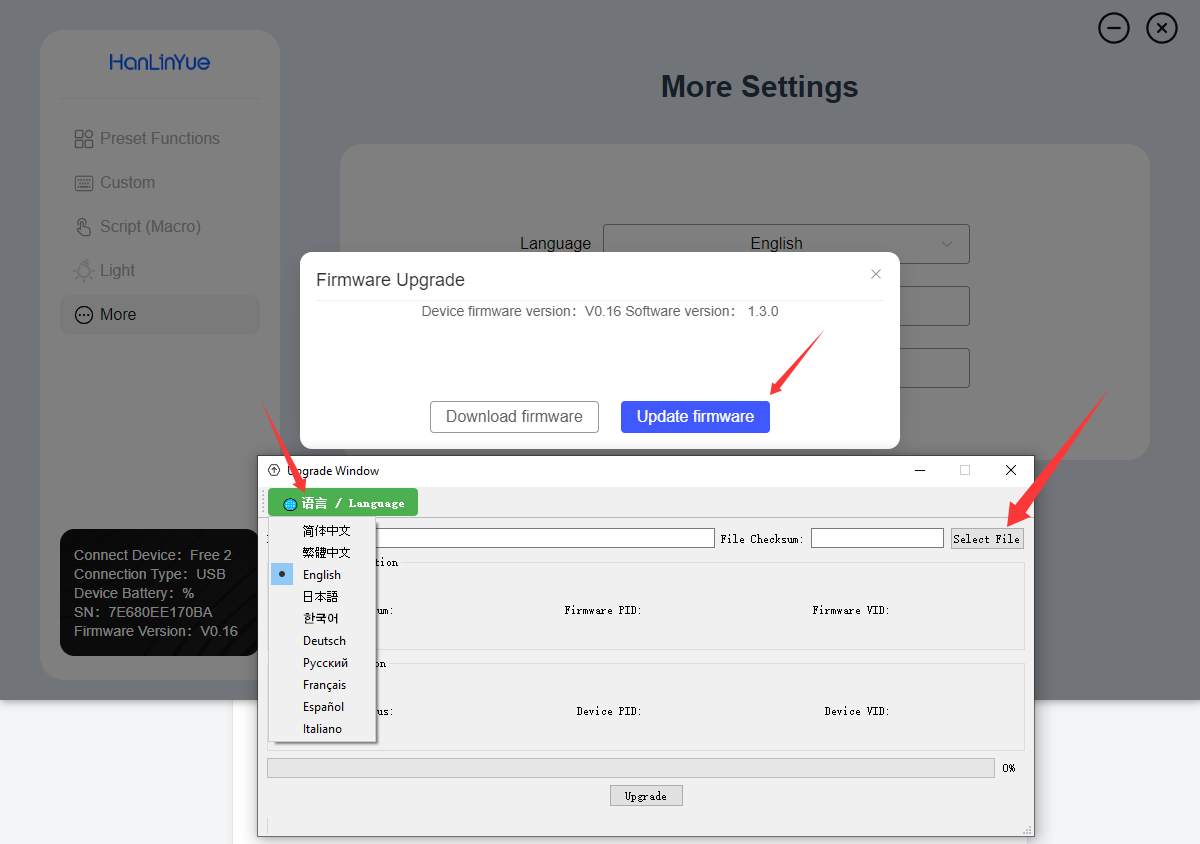
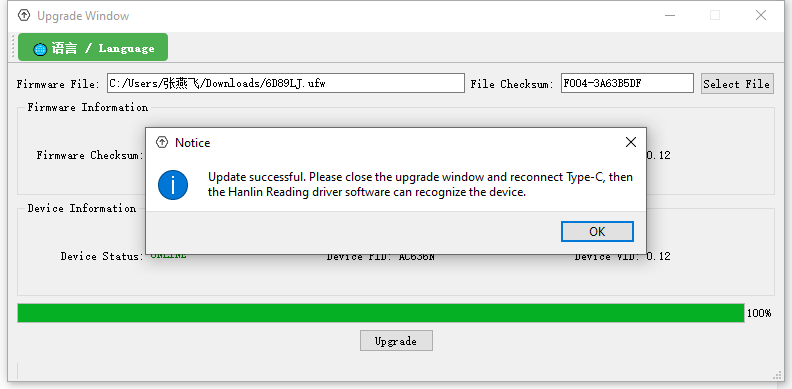
Click . The system will upgrade automatically. Once the upgrade is complete, it will display . You can then safely unplug the USB cable.