Hanlinyue Free2
Kindle Edition · Bluetooth Page Turner · Digital User Manual · Tap a section title to expand
1. Product Button Diagram and Part Descriptions
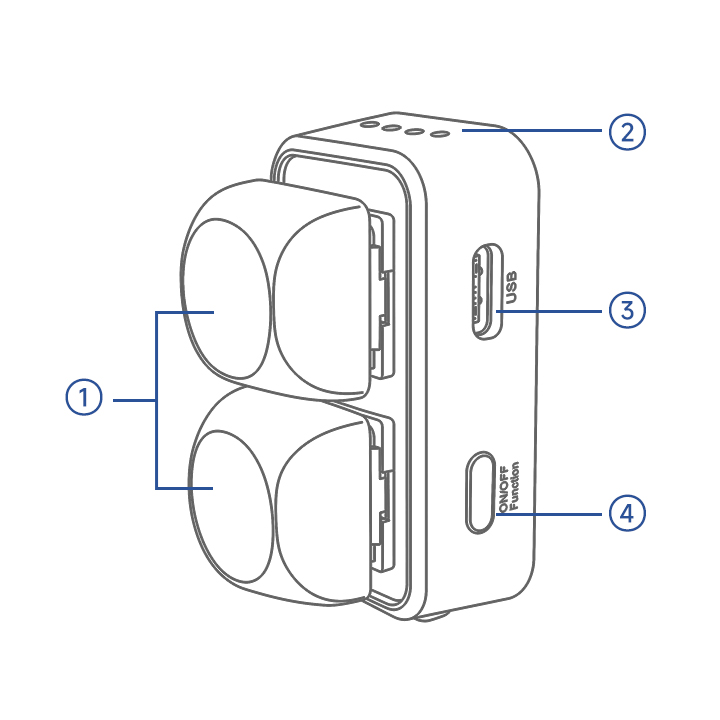 Product button diagram
① Page-Turn Button ② Indicator Light ③ USB Charging Port ④ Power Button
Functions of each button:
| Button / Part | Function |
|---|---|
| ① Page-Turn Button | Single click: turn the page (previous / next); long press: sleep |
| ② Indicator Light | Shows power-on, pairing, battery and charging status |
| ③ USB Charging Port | Type-C port for charging the device |
| ④ Power Button | Press for 2 seconds to power on / off |
2. How to Power On
| Action | Method |
|---|---|
| Power on | Press the power button for 2 seconds; the indicator light turns on to confirm power-on |
| Power off | Press the power button for 2 seconds again; the indicator light glows red to confirm power-off |
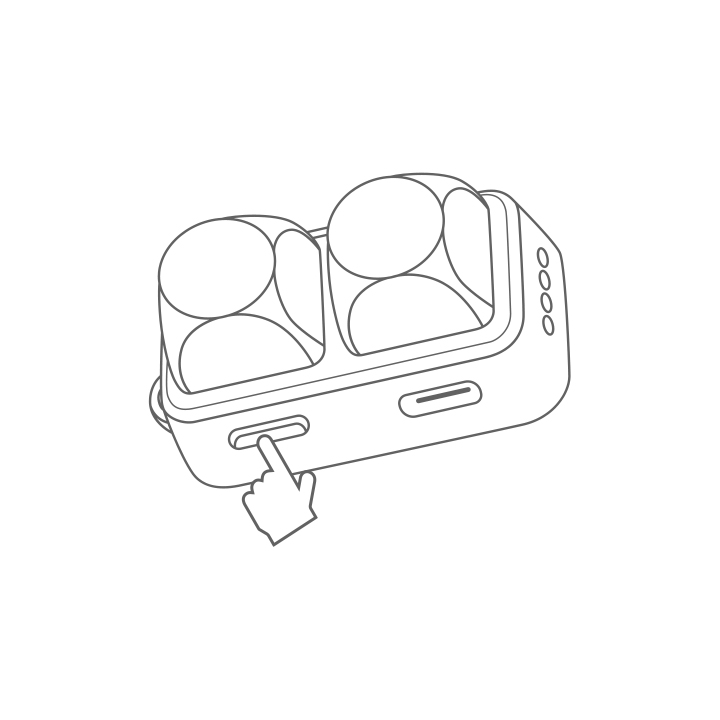 Power on / off procedure
⏱ Automatic Power-Off Timing
| Status | Auto power-off rule |
|---|---|
| Bluetooth not paired | Stays in pairing mode for 1 hour; if pairing is not completed in time, the device powers off automatically |
| Bluetooth connected | Powers off automatically after 1 hour of no activity once connected |
3. Turning the RGB Light Off / On
While the device is powered on, press and hold the power button together with the RGB light button you want to control, then release to turn that RGB light on / off
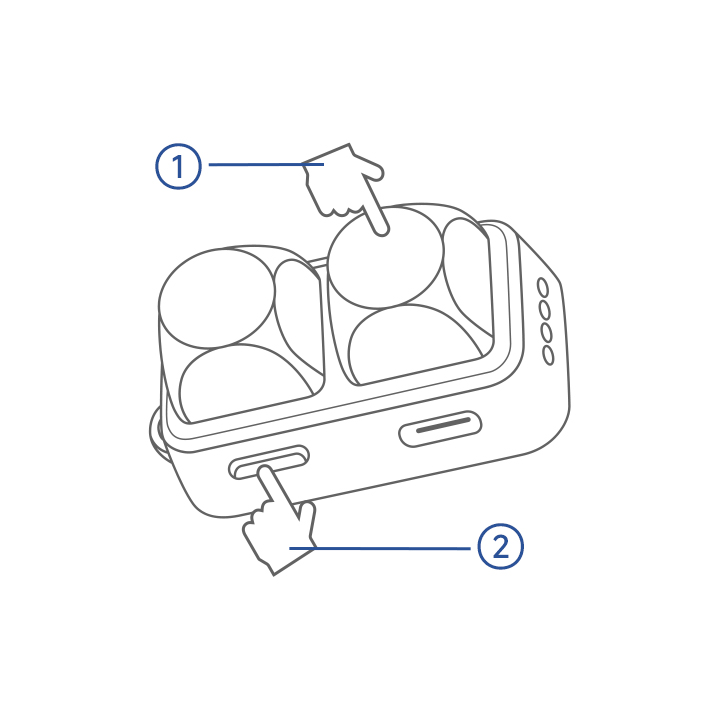 Using the button combination to turn the RGB light on / off
4. Charging Indicator Light
Charging indicator location: next to the USB charging port on the device.
| Status | Indicator behavior |
|---|---|
| Charging | Indicator (①) stays solid red |
| Fully charged | Indicator (②) turns off or turns green (depends on the actual unit) |
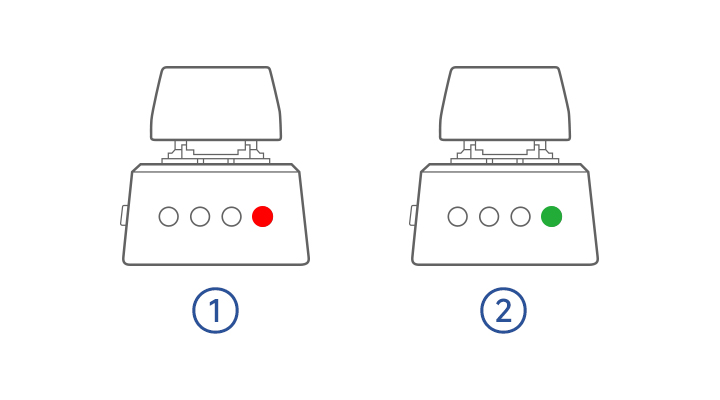 USB charging port location and indicator light while charging
5. Battery Level
How to check the battery level:
- The remaining battery level is shown at power-on,
- *When the indicator light glows red / flashes, the battery is low — please charge promptly
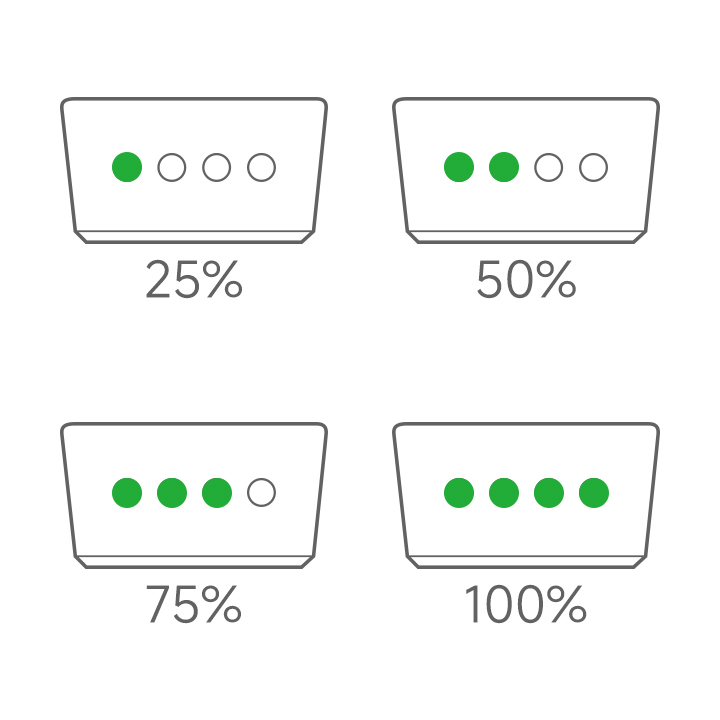 Battery level check / low-battery red light warning
6. Pairing with Kindle
Follow the steps below:
Step 1: Power on the Free2 page turner to enter pairing mode
Press the power button for 2 seconds to power on; a flashing indicator light means pairing mode
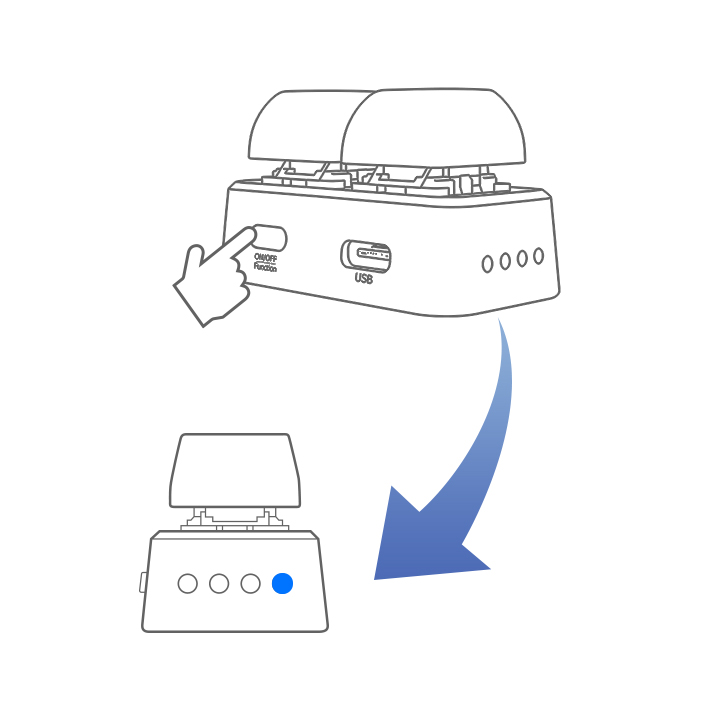 Animation: Free2 powered on and entering pairing mode
Step 2: On Kindle, search Bluetooth for "kindle click" to complete pairing
Open a book, then press the page-turn button to turn pages
Tips:
2. If Kindle page turns feel delayed, go to Settings - Home & Library - Reading Options - turn off Page Refresh to speed up page turning.
Button functions:
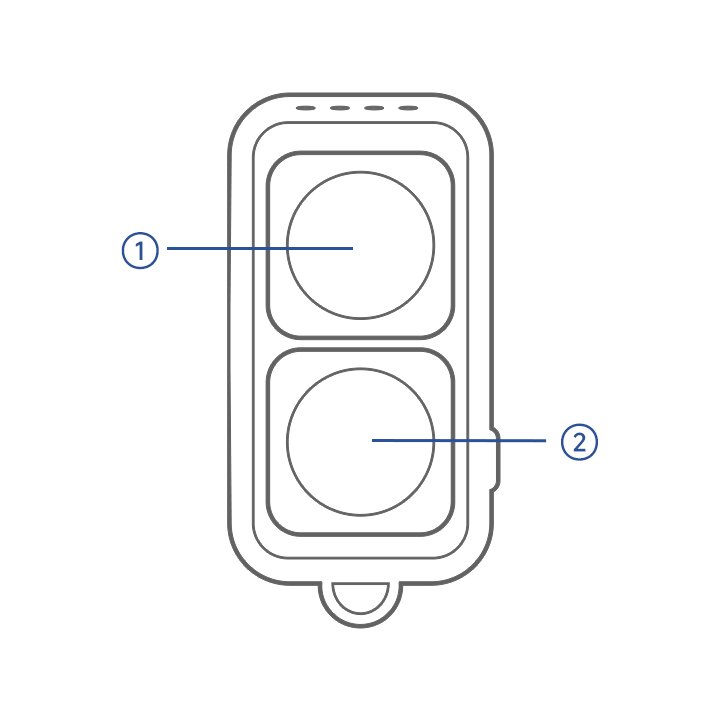 Product button diagram (single click / long press functions)
- ① Single click: next page
- ② Single click: previous page
- Long press: sleep
7. FAQ: Kindle Won't Turn Pages
Please check the following!
- Confirm that the Free2 is powered on and in pairing mode
- Confirm that your Kindle is a model released in 2024 or later
- Confirm that your Kindle firmware is 5.20.1 or later
Solution: Turn off the Page Refresh feature on your Kindle.
Path: Settings → Home & Library → Reading Options → Page Refresh → Off
Turning it off can noticeably speed up page turns.
Cause: Kindle firmware version 5.20.1 does not count page turns from the remote as activity; it calculates the sleep countdown based on screen taps, so after a while of remote page turning the Kindle goes to sleep automatically.
Solution: Extend the Sleep Timer setting.
Path: Settings → Device Options → Sleep Timer → Set to 1 hour
Explanation: This is normal — no page turner can wake up a Kindle. When the Kindle goes to sleep, it turns off its Bluetooth module, so signals from the remote cannot be received.
Tip: Wake the Kindle screen first, and the remote will work again.
Explanation: After the Kindle wakes up, the system re-enables the Bluetooth module within a few seconds. If you press the page turner during this time, it will reconnect automatically in about 5 seconds and perform the page turn.
Conclusion: This is not a fault — wait a moment and page turning works normally.
8. After-Sales Service
| Item | Information |
|---|---|
| Warranty period | One year (excluding human-caused damage) |
| Official website | hanlinyue.com.cn |
| Technical support | hly@hanlinyue.com.cn (reply within 48 hours) |