Hanlinyue Free2
KOBO Edition · Bluetooth Page Turner · Online User Manual · Tap a section title to expand
1. Product Button Layout and Descriptions
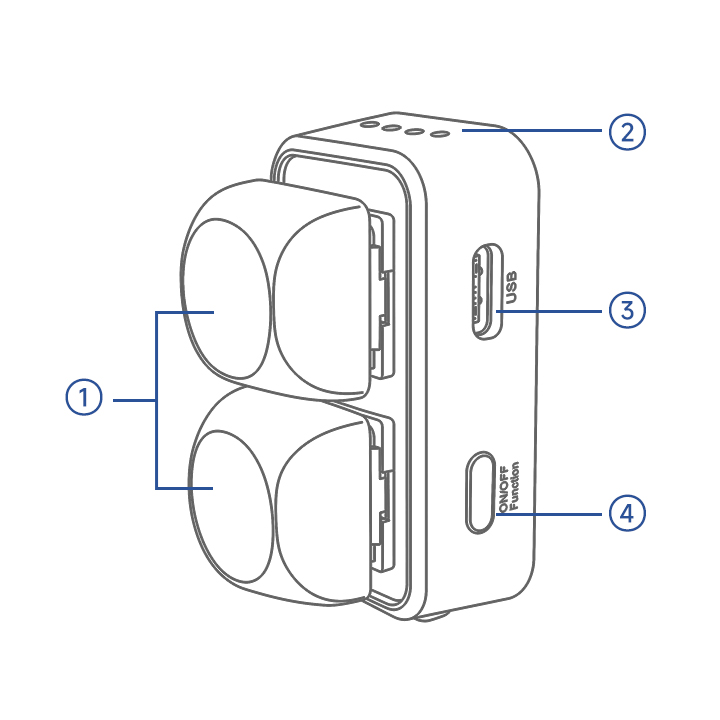 Product button layout
Button and part numbers:
① Page-turn key ② Indicator light ③ USB charging port ④ Power key
Functions of each button:
| Button / Part | Function |
|---|---|
| ① Page-turn key | Single press: page turn (previous / next page); press and hold: sleep |
| ② Indicator light | Shows power-on, pairing, battery level, charging and other status |
| ③ USB charging port | Type-C port, used to charge the product |
| ④ Power key | Press briefly for 2 seconds to power on / power off |
💡 Tip: The actual appearance may differ. Please refer to the product in your hand when identifying the location of each part.
2. Powering On
| Action | Method |
|---|---|
| Power on | Press the power key briefly for 2 seconds. When the indicator light comes on, the device has powered on successfully. |
| Power off | Press the power key briefly for 2 seconds again. When the indicator light lights up red, the device has powered off successfully. |
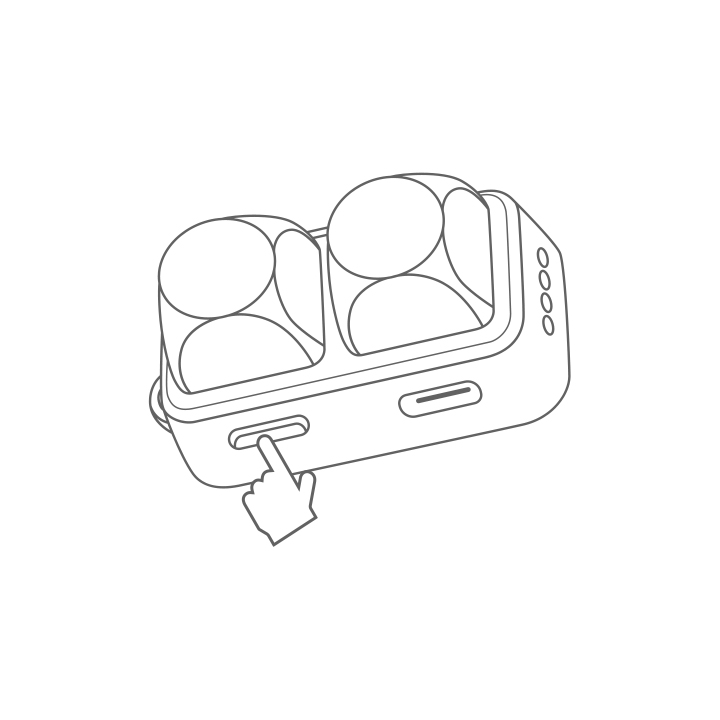 Power-on / power-off operation
⏱ Auto power-off
| Status | Rule |
|---|---|
| Bluetooth not paired | The pairing window is 1 hour. The device powers off automatically if pairing is not completed within this time. |
| Bluetooth connected | After connection, the device powers off automatically after 1 hour of inactivity |
⚠️ If the device will not be used for a long time, power it off before storing it, and charge it about once a month to avoid damaging the battery through over-discharge.
3. Turning the RGB Light Off / On
While the device is on, press and hold the power/function key together with the key of the RGB light you want to control. Release both keys to turn that RGB light on / off.
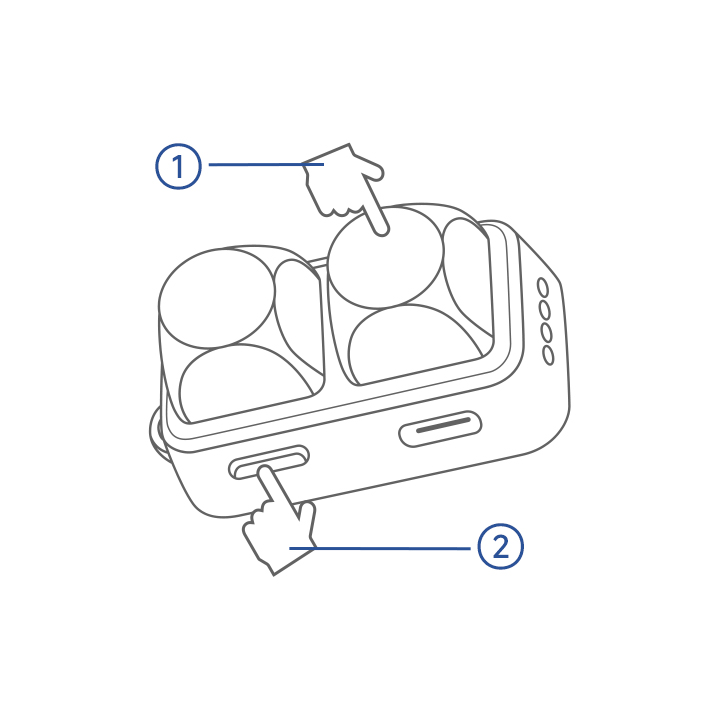 Turning the light off / on
💡 Repeat this key combination to switch between on and off. At night, or when you need a distraction-free atmosphere, turn the RGB light off to reduce light interference.
4. Charging Indicator
Charging indicator location: near the USB charging port on the product.
| Status | Indicator light behavior |
|---|---|
| Charging | Indicator light (①) stays lit (red) |
| Charging complete | Indicator light (②) goes out or turns green (depends on the actual unit) |
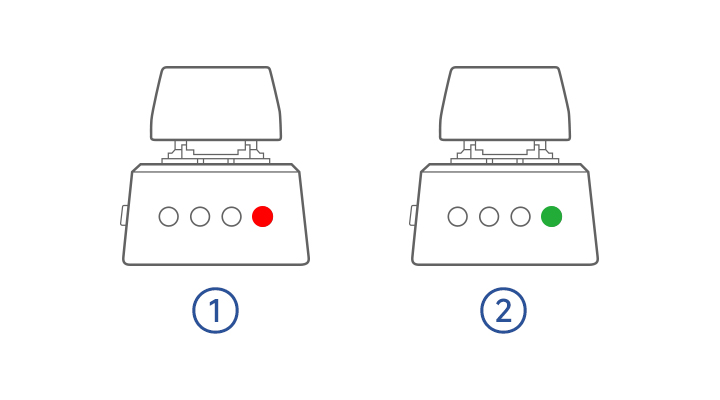 USB charging port location and indicator light while charging
5. Battery Level
How to check the battery level:
- The remaining battery level is displayed when the device powers on,
- *When the indicator light lights up red / flashes, the battery is low. Please charge the device promptly.
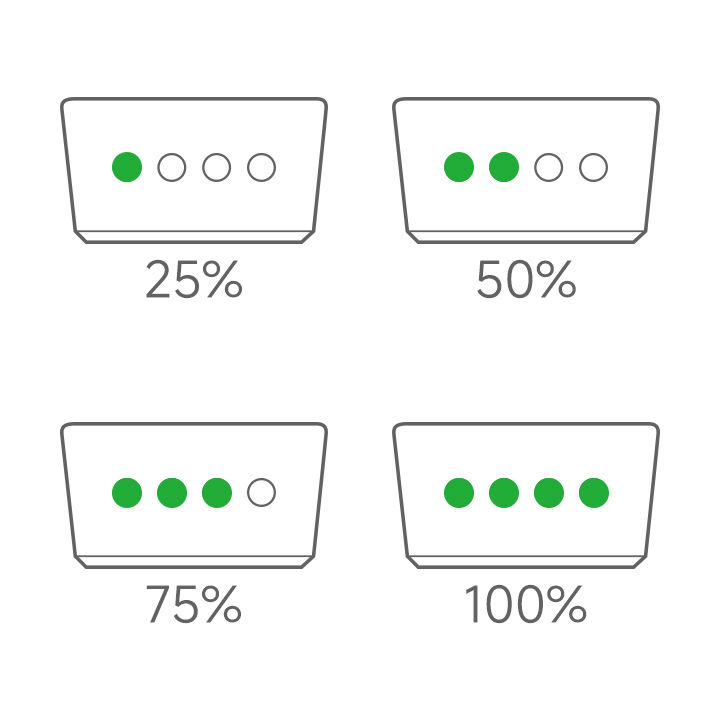 Battery level check / low-battery red light warning
⚠️ Do not wait until the battery is completely drained before charging. A low battery can affect Bluetooth connection stability.
6. Connecting to KOBO
📖 KOBO plugin installation guide (tap to open) →
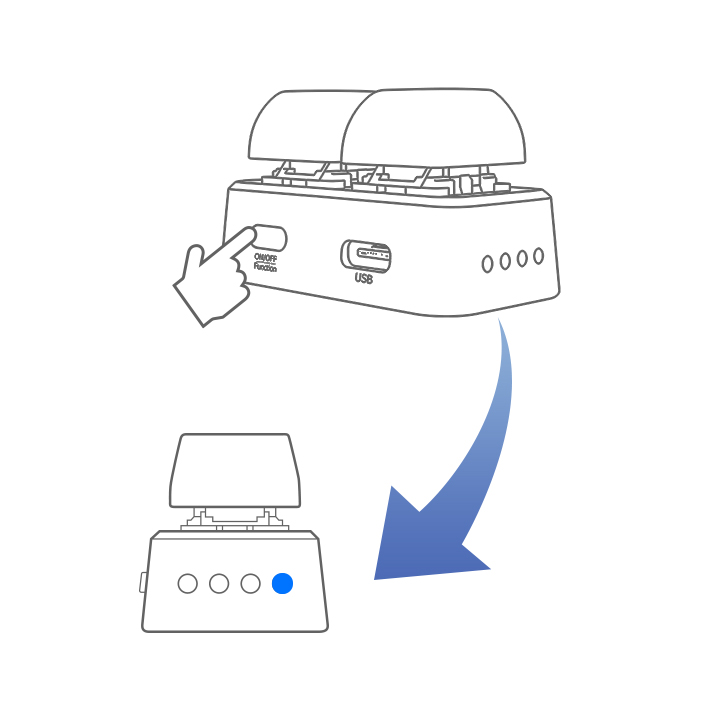 Free2 powered on and entering pairing mode (demo)
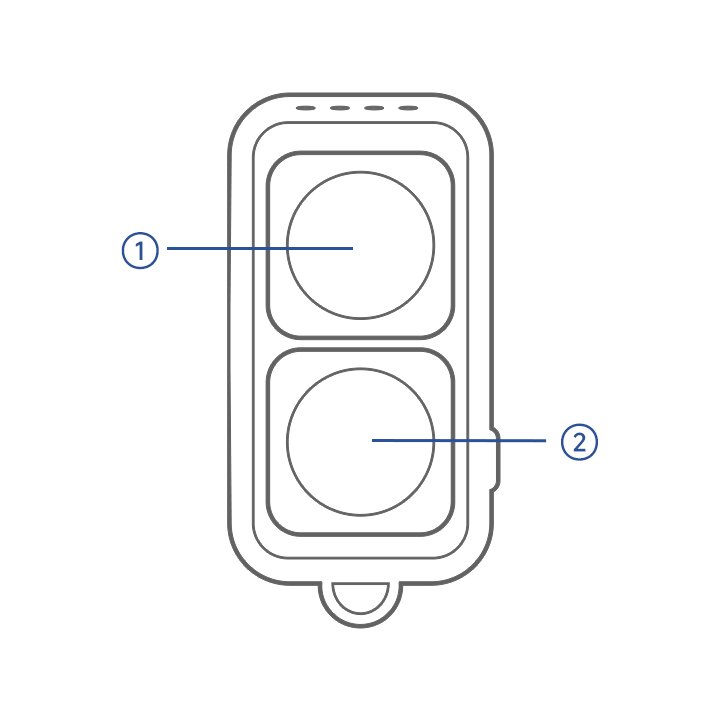 Product button labels (functions for single press / press and hold)
Please follow the steps below:
Step 1: Power on the Free2 page turner and enter pairing mode
Press the power key briefly to power on. The indicator light flashes to indicate pairing mode.
Free2 powered on and entering pairing mode (demo)
Step 2: On kobo, search for Free2-Kobo over Bluetooth and complete pairing
Open a book and press the page-turn key to turn pages
Tip:
*On some KOBO devices, the page-turn plugin must be installed first.
Example: Libra2/Clara 2E
Key guide:
Product button labels (functions for single press / press and hold)
- ① Single press: next page
- ② Single press: previous page
- Press and hold: sleep
7. After-Sales Service
| Item | Information |
|---|---|
| Warranty period | One year (accidental damage excluded) |
| Official website | hanlinyue.com.cn |
| Technical support | hly@hanlinyue.com.cn (reply within 48 hours) |