Hanlinyue Free2
Phone/tablet version · Quick start guide · Tap a category to expand it and see what each feature does
The Free2 and its button locations are shown below:
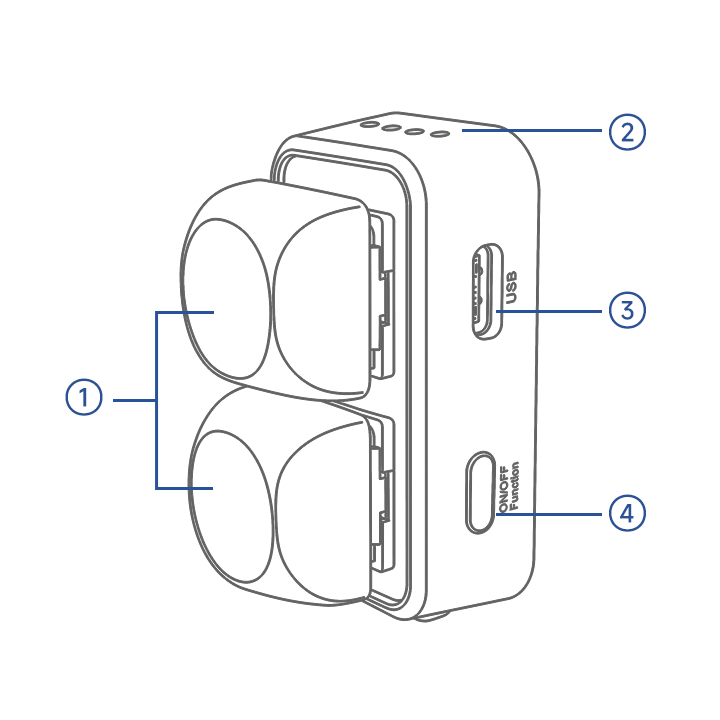 Free2 button layout
Button numbers:
① Page-turn key ② Indicator light ③ USB charging port ④ Power/function key
What each button does:
| Button / part | Function |
|---|---|
| ① Page-turn key | Single press: scroll up / down or skip ahead (short videos, music, PPT, etc.) |
| ② Indicator light | Shows power, pairing, battery and charging status |
| ③ USB charging port | Type-C port for charging the product |
| ④ Power/function key | Press briefly for 2 seconds to power on / off; when on, single-press to switch modes; press and hold to run a Bluetooth reset (15 seconds) or factory reset (30 seconds) |
Power on / off:
- Power on: Press the power/function key briefly for 2 seconds; the indicator light comes on when the device has powered on
- Power off: While the device is on, press the power/function key briefly for 2 seconds; the indicator light turns red when the device has powered off
RGB light off / on:
- While the device is on, press and hold the power/function key together with the RGB light button you want to control, then release to turn that RGB light on / off
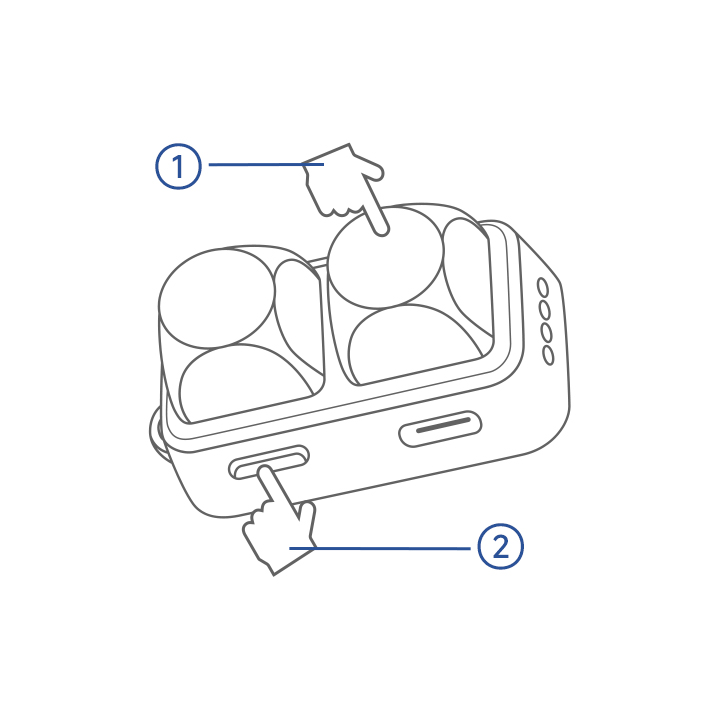 Turning the light on / off
💡 Repeat this key combination to toggle between on and off. Turn the RGB light off at night or when you need a distraction-free atmosphere to reduce light glare.
Battery level:
- How to check the battery:
- The remaining battery is shown when you power on
- *When the indicator light turns red / blinks, the battery is low; please charge it promptly
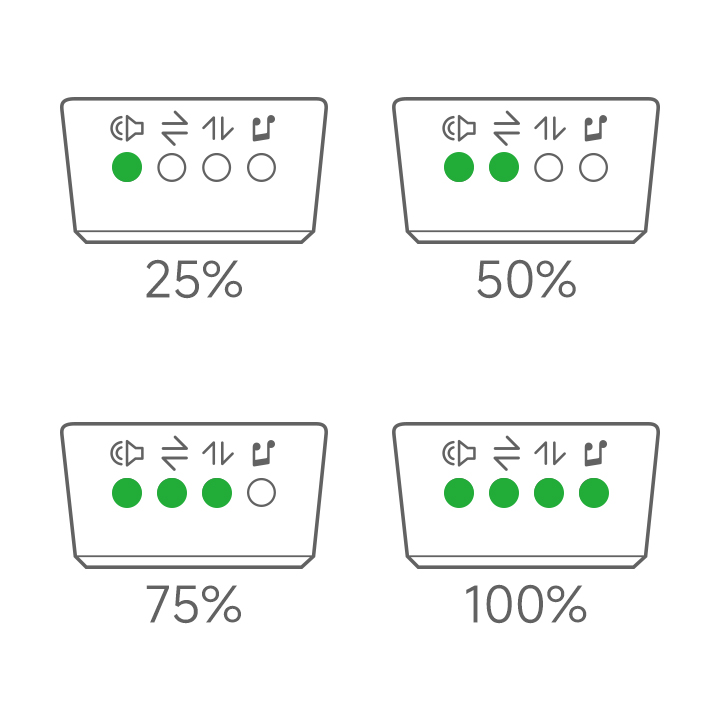 Battery check / low-battery red light
Bluetooth reset:
- If the Bluetooth connection misbehaves, while the device is on, press and hold the power/function key (④) for about 15 seconds, until the indicator light (②) turns red for the second time and the Bluetooth reset succeeds
⚠️ After a successful Bluetooth reset, you must ignore or delete the Bluetooth pairing record, then pair with the device again.
Factory reset:
- If the product stops working properly, while the device is on, press and hold the power/function key (④) for about 30 seconds, until the indicator light (②) turns red for the third time and the factory reset succeeds
⚠️ After a successful factory reset, you must ignore or delete the Bluetooth pairing record, then pair with the device again.
Auto power-off:
| Status | Rule |
|---|---|
| Bluetooth not paired | Pairing window of 1 hour; if pairing is not completed in time, the device powers off automatically |
| Bluetooth connected | Powers off automatically after 1 hour with no activity when connected |
💡 Appearance depends on the actual product. Use the unit in your hand to identify each button location.
Tips:
*On Apple phones and tablets, turn on Zoom in Settings first, or the function will not work; see the video tutorial below for how
*Switch to Left/Right mode when using landscape orientation
🎬 Zoom tutorial for Apple devices (tap to watch) →
Connection steps:
- While the device is on, press the power/function key to switch to Up/Down mode; a blinking indicator light means it is ready to pair
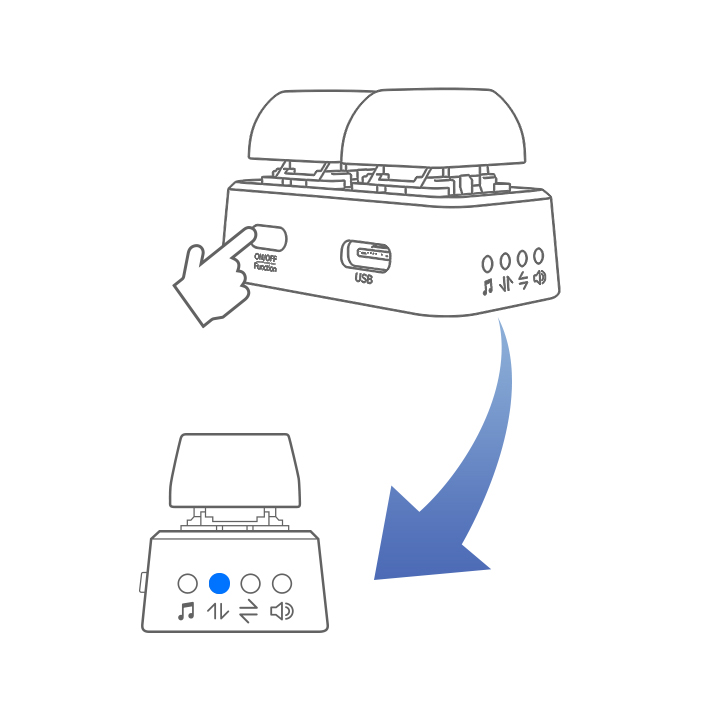 Switching to Up/Down mode (blinking indicator light = ready to pair)
- Search for Free2-M in Bluetooth and pair
Open a short-video app and tap the page-turn key to switch videos
Button guide:
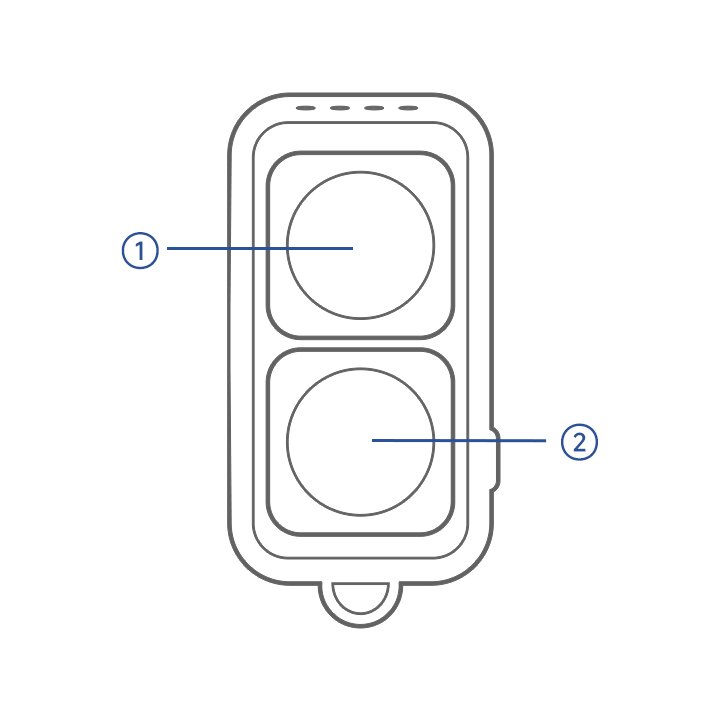 Button guide diagram (single press / double press / press and hold)
- ① Single press: next
- ② Single press: previous
- Double press: Like
- Press and hold: Playback speed
Connection steps:
- While the device is on, press the power/function key to switch to Left/Right mode; a blinking indicator light means it is ready to pair
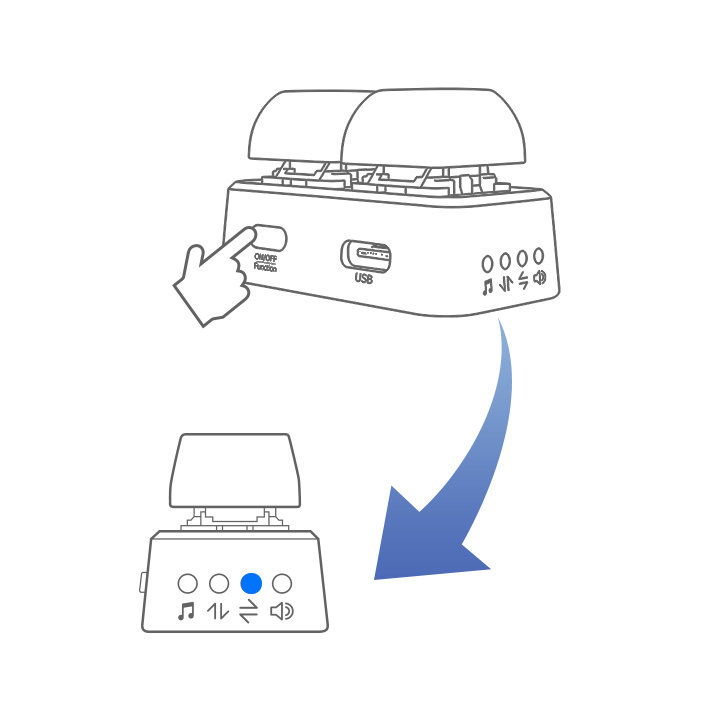 Switching to Left/Right mode (blinking indicator light = ready to pair)
- Search for Free2-M in Bluetooth and pair
Open a book and tap the page-turn key to turn pages
Tips:
*On Apple phones and tablets, turn on Zoom in Settings
*Switch to Up/Down mode when using landscape orientation
*The Swipe Up/Down page-turn method is not supported
Button guide:
Button guide diagram (single press)
- ① Single press: next page
- ② Single press: previous page
Connection steps:
- While the device is on, press the power/function key to switch to Volume mode; a blinking indicator light means it is ready to pair
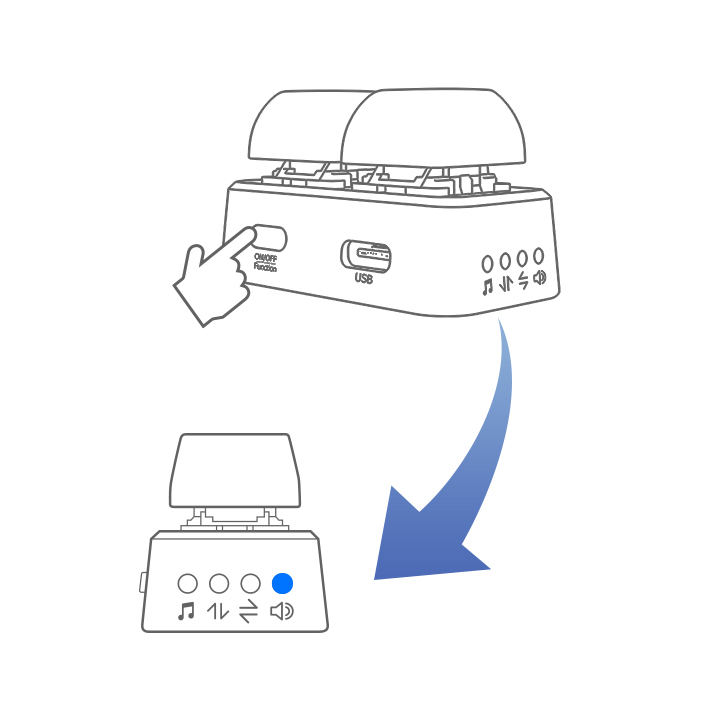 Switching to Volume mode (blinking indicator light = ready to pair)
- Search for Free2-M in Bluetooth and pair
Open a book and tap the page-turn key to turn pages
Tips:
*If pages will not turn, turn on Volume-key page turning in the app settings
*The Swipe Up/Down page-turn method is not supported
Button guide:
Button guide diagram (single press / double press / press and hold)
- ① Single press: next page
- ② Single press: previous page
- Double press: Home screen
- Press and hold: Lock screen
Connection steps:
- While the device is on, press the power/function key to switch to Volume mode; a blinking indicator light means it is ready to pair
Switching to Volume mode (blinking indicator light = ready to pair)
- Search for Free2-M in Bluetooth and pair
Open a book and tap the page-turn key to turn pages
Tips:
*If pages will not turn, turn on Volume-key page turning in the app settings
*The Swipe Up/Down page-turn method is not supported
Button guide:
Button guide diagram (single press / double press / press and hold)
- ① Single press: next page
- ② Single press: previous page
- Double press: Home screen
- Press and hold: Lock screen
Connection steps:
- While the device is on, press the power/function key to switch to Music mode; a blinking indicator light means it is ready to pair
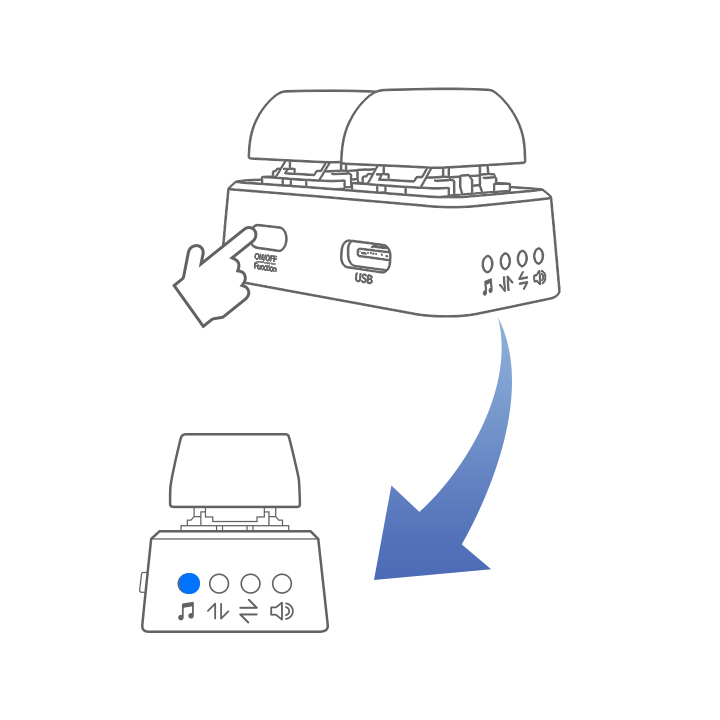 Switching to Music mode (blinking indicator light = ready to pair)
- Search for Free2-M in Bluetooth and pair
Open a music app and tap the page-turn key to switch music
Button guide:
Button guide diagram (single press / double press / press and hold)
- ① Single press: next track
- ② Single press: previous track
- Double press: Home screen
- Press and hold: Lock screen
Connection steps:
- While the device is on, press the power/function key to switch to Volume mode; a blinking indicator light means it is ready to pair
Switching to Volume mode (blinking indicator light = ready to pair)
- Search for Free2-M in Bluetooth and pair
Open the camera and tap the page-turn key to take a photo / record a video
Button guide:
Button guide diagram (single press / press and hold)
- ① Single press: take photo / record video
- ② Single press: take photo / record video
- Press and hold: Lock screen
Connection steps:
- While the device is on, press the power/function key to switch to Volume mode; a blinking indicator light means it is ready to pair
Switching to Volume mode (blinking indicator light = ready to pair)
- Search for Free2-M in Bluetooth and pair, then tap the page-turn key to adjust the volume
Button guide:
Button guide diagram (single press / press and hold)
- ① Single press: Volume-
- ② Single press: Volume+
- Press and hold: Lock screen